How do I exclude specific job titles when building a list?
Last updated: May 18, 2026
Context
When creating and enriching a list, you may want to exclude leads with certain job titles that contain specific keywords (e.g. "program", "finance", "audit"), or other terms that don't match your target criteria. The platform provides filtering options to help you refine your search results.
Answer
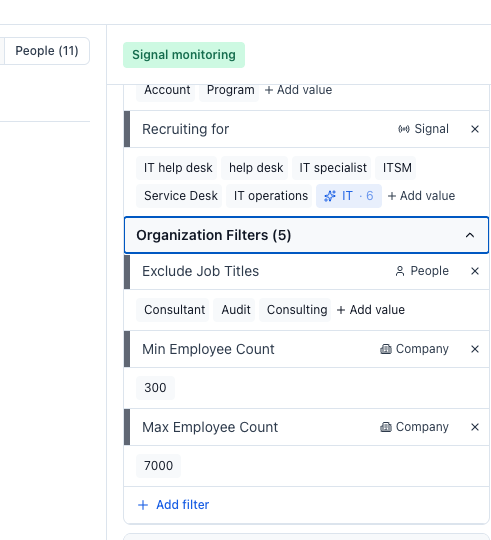
To exclude specific job titles during list enrichment, use the "Exclude Job Titles" filter located in the Organisation Filters section. Here's how to access and use it:
In your lead search, look for the "Add Filter" button, click it and type (or look for) "Exclude Job Titles"
If you can't find it, look for the "Organisation Filters" section
Click to expand the "Organisation Filters" section if it's collapsed (it's collapsed by default)
Find the "Exclude Job Titles" filter option
Add keywords you want to exclude (e.g., "finance", "program", "audit")
The filter will match any job titles that contain the keywords you specify
Important notes:
The "Exclude Job Titles" filter is more effective than "Exclude Keywords" because it specifically targets job titles rather than searching through LinkedIn profile descriptions
You only need to enter partial keywords (e.g., "operations" will exclude titles such as "Marketing operations manager", "VP Operations", "Head of Revenue Operations" etc.)
The Organisation Filters section is collapsed by default, so you need to expand it to see and add filters there
Once added, these exclusions will appear in the Organisation Filters section
This filtering approach ensures that your enriched list contains only leads with job titles that match your target criteria while excluding unwanted roles.